
No separate account
Sign in to iCloud with the same Apple Account on your Mac and the device you control from. No new ClamWake ID or password to create.
Keep your Mac awake. Control it nearby.
Check and control the Mac in your bag or on your desk from iPhone, iPad, or another Mac. Keeping it awake and taking screenshots are free. Pro adds live screen sharing and control.
To use Remote, sign in to iCloud with the same Apple Account on your Mac and the device you control from.

Keep awake: Free
Screen sharing: Pro
ClamWake for Mac Free
Keeping your Mac awake is free.
Exports, builds, and other long-running jobs can continue while the lid is closed. ClamWake lets you choose when to keep the Mac awake and when to let it sleep normally.
ClamWake Pro · Screen sharing & control
No room to open your MacBook? Bring its desktop to iPhone, iPad, or another Mac. Check progress, click what you need, or type a little text. Handle a quick task from the screen in your hands while your MacBook stays closed.
Can I control a Mac at another location over VPN?
Check a result, click a button, or type a quick reply without taking your MacBook out of its bag. ClamWake Pro brings your nearby Mac’s screen to iPhone, iPad, or another Mac running ClamWake Remote. Video and input travel directly between your paired devices.
Designed for the Mac you keep nearby: in your bag, on your desk, or beside the sofa. Start with Pro, allow Screen Recording and Accessibility on the Mac, and pair on the same local network.
ClamWake Remote · Free direct connection
Use your existing iCloud account to reach the Mac nearby. After setup, choose your Mac in Remote to check its status and screenshots for free. Pro adds live screen control. Connect on your local network, or directly nearby with Wi-Fi on for both devices.
MacWi-Fi on
Direct connection nearby
ClamWake RemoteWi-Fi on
Sign in to iCloud with the same Apple Account on your Mac and the device you control from. No new ClamWake ID or password to create.
Start on the same local network and follow the app’s prompts to allow the connection. Direct connections and pairing are free. Allow Screen Recording for screenshots; for Pro screen control, also enable control and allow Accessibility on the Mac.
Select your paired Mac in Remote and open screen control. Check a job in your bag or click from the sofa, without opening your MacBook again.
Pairing and direct connections for status and screenshots are free. Once paired, nearby direct connections need no shared Wi-Fi network, router, or personal hotspot. Live screen control is a Pro feature. Direct connection range varies with radio conditions and compatible device settings.
ClamWake Pro · Mac → Mac
ClamWake Remote also runs on Apple silicon Macs. Install it on the Mac in front of you to check and control another nearby Mac, without moving to its desk.
The Mac you control fromClamWake Remote
Screen sharing & control
The Mac being controlledClamWake
Install the menu bar app on the Mac you want to control. Enable control from ClamWake Remote, and allow Screen Recording and Accessibility.
Install Remote on your Apple silicon Mac. Sign in to iCloud with the same Apple Account on both Macs.
Follow the initial connection prompts on the same local network. Once set up, select the Mac you want in Remote and open screen control. This is a Pro feature.
This is the same screen-sharing feature available from iPhone and iPad. The host always runs ClamWake. MacBook, iMac, and Mac mini are supported.
ClamWake Pro · iPad
Share your Mac’s screen to iPad and check or control it while lying back. Your MacBook stays off your lap. Connect wirelessly over your home Wi-Fi.

Screen-sharing details Pro
Tap the screen directly or slide a finger to move the pointer. Right-click, drag, and scroll with two fingers.
Send text, modifier keys, and arrows. Use shortcuts for copy, paste, save, app switching, and more.
Use 1×, 2×, 3×, or 4× zoom, or pinch to inspect small text and details.
Select the Mac display to view. You can also follow the display containing the pointer automatically.
Adjust the host Mac’s resolution to the viewing area on your device. It readjusts when the orientation or available area changes.
On supported devices, Picture in Picture keeps the Mac visible while you use another app. The small window is for viewing; return to the control screen to interact.
Free · Screen capture
Use ClamWake Remote to capture a still image of your Mac’s screen. Check the progress of a long task or see its result. No Pro purchase is needed.
Enable screen capture from ClamWake Remote in the Mac menu and allow Screen Recording. The Mac taking the screenshot needs macOS 14 or later.
Choose Capture Mac Screen in the Mac’s detail view. When directly connected to a paired Mac, the image arrives over that connection. Otherwise, Remote retrieves it through your private iCloud data.
Open the image at a larger size, take another, or share it. The latest image is kept for each Mac. You can delete it from iCloud in the app.
The Mac must be awake and reachable. If its display is locked or off and cannot be captured, the app explains why.
ClamWake Remote
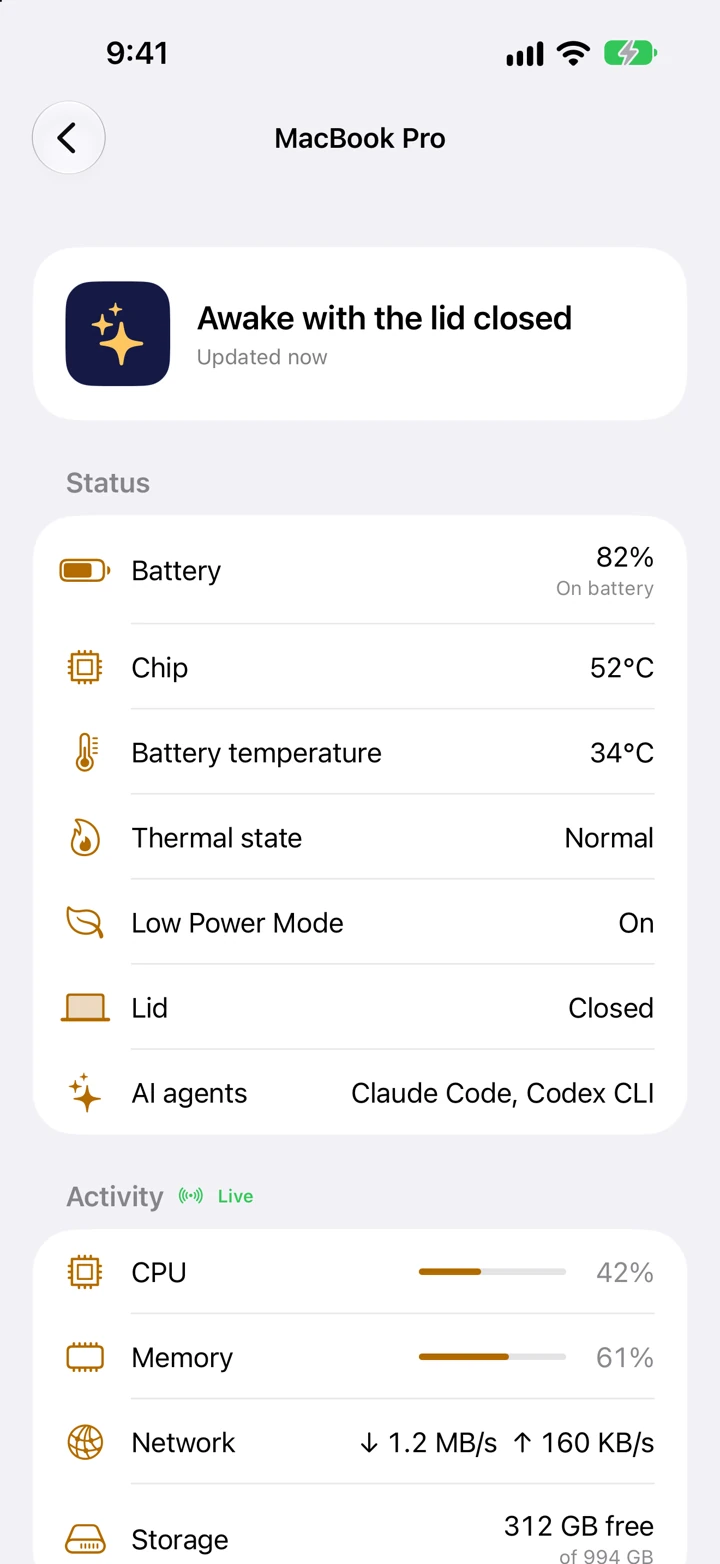
Battery, temperature, and CPU activity. Check the Mac in your bag, right from your iPhone. The free Home Screen widget also shows sleep status and battery level.
App preview. Values shown were captured for the screenshot.
Timers and automation Pro
Automatically adjusts sleep prevention based on the detected activity of tools such as Claude Code, Codex, and Gemini CLI. Claude Code hooks also provide task and input-waiting notifications. A Pro feature.
Detection is continually improving
Your tools and environment can affect activity detection. The detected working or finished state may differ from the actual task state. Check how it behaves with your usual workflow first.
How AI Agent Mode worksUse a 1–8 hour timer for a long job. ClamWake also monitors heat and low battery.
Made for Mac
Toggle sleep prevention and check your Mac’s status from the menu bar. When a screen-sharing session ends, its video capture and transmission stop too.
Uses the Swift programming language and Apple’s AppKit and SwiftUI frameworks for Mac interfaces. Toggle sleep prevention and check status from the Mac menu bar.
ScreenCaptureKit captures the display, and VideoToolbox compresses it as H.264. Ending the sharing session also ends its capture and transmission.
Nearby discovery becomes intermittent when no Mac is found. Menu display updates stop when you close the menu. Periodic safety checks and status sync continue.
Resource use depends on what you do. Sharing processes and transmits video, and the work running on your Mac consumes battery too. Resolution, network conditions, and Picture in Picture also affect resource use.
Safety controls
Closing a laptop in a bag changes how it sheds heat. ClamWake switches to Low Power Mode when heat rises and releases the sleep hold at a critical thermal state or low battery. It can restore the hold after cooling down or connecting power. You can also choose low power mode while the lid is closed.
Heat or low battery
The sleep hold is released automaticallySetup
ClamWake is made for Apple silicon Macs running macOS 13 or later. Give its helper permission during setup.
Install ClamWake Remote and sign in to iCloud with the same Apple Account as your Mac. No separate ClamWake registration. Follow the initial connection prompts on the same local network. Allow Screen Recording and Accessibility on the Mac for live control.
After setup, select your Mac in Remote to check its status or open Pro screen control. Use it from your bag, the sofa, or another nearby Mac. Sleep prevention and screenshots are free.
Free and Pro
Keeping your Mac awake, checking status in Remote, capturing screenshots, and the Home Screen widget are free. Pro adds screen control from iPhone, iPad, or another Mac, plus automation.
| Feature | FreeCore features | ProYearly / one-time |
|---|---|---|
| Keep your Mac awake with the lid closed | Included | Included |
| View battery, temperature, and CPU on Mac | Included | Included |
| Heat and low-battery safeguards | Included | Included |
| Mac keyboard shortcut and Sleep Now | Included | Included |
| Check Mac status in Remote | Included | Included |
| Capture a Mac screenshot | Included | Included |
| Home Screen widget | Included | Included |
| Nearby direct connections and pairing | Included | Included |
| View and control the Mac screen from iPhone or iPad | Not included | Included |
| View and control a Mac from another Mac | Not included | Included |
| Control sleep and Low Power Mode from Remote | Not included | Included |
| Turn the display on or off, or dim it from Remote | Not included | Included |
| iPhone alerts | Not included | Included |
| AI Agent Mode | Not included | Included |
| 1–8 hour timer | Not included | Included |
| Control your Mac with Shortcuts and Siri | Not included | Included |
Pro offers a yearly plan with a one-week trial for eligible accounts, or a one-time purchase without a trial. See prices and purchase options in ClamWake Remote.
ClamWake Pro
Check prices and trial eligibility in ClamWake Remote. The yearly plan renews automatically unless cancelled at least 24 hours before the period ends. Buying the one-time option does not cancel an existing yearly subscription; cancel it in your Apple Account subscription settings.
Planning to use a VPN? Use the yearly plan’s one-week free trial, available to eligible accounts, to check connectivity and responsiveness over the VPN and networks you intend to use. Individual support for VPN setup, connections, and operation is not provided. About VPN use
Your Pro purchase status also reaches Macs using the same Apple Account through iCloud.
Quick access to the Mac you keep nearby: check the MacBook in your bag, use your desk Mac from the sofa, or control a nearby Mac from another Mac. Live screen control uses the local network or a nearby direct connection.
No separate ClamWake account or password is needed. To use Remote, your Mac and the device you control from must be signed in to iCloud with the same Apple Account. iCloud syncs status, screenshots, and purchase information. For live screen control, follow the first-time pairing prompts on the same local network and allow the Mac permissions.
Yes. ClamWake also supports remote screen control over a VPN. Pair your devices on the same local network before using them at separate locations. Keep the host Mac awake, enable VPN access in ClamWake, and allow Screen Recording and Accessibility. Live screen control requires Pro, including during a trial.
Your VPN must make the devices reachable at their private addresses and allow traffic between them, including through any firewall. Joining a VPN alone does not establish this path. ClamWake uses the route you configure and does not provide an internet relay.
Connectivity, picture quality, and input delay depend on your VPN, network speed, and latency. Before purchasing for VPN use, try the actual devices and networks during the yearly plan’s one-week free trial, available to eligible Apple Accounts. The one-time purchase has no free trial.
Individual support for VPN setup, connections, and operation is not provided. Please use VPN remote control in an environment you can configure and maintain yourself.
It estimates activity from the tools’ processes and network traffic. Claude Code hooks provide additional task notifications. Detection and compatibility are being improved continuously.
Tool versions, how you run them, and long waits for responses can affect detection. The detected working or finished state may differ from the actual task state. Sleep prevention can be released while a task is still running, or remain active after it finishes.
Check the working and finished states with your usual tools before relying on automatic control. Eligible Apple Accounts can test the mode during the yearly plan’s one-week free trial. If you want to keep the Mac awake without activity detection, turn on the regular free keep-awake switch. Heat and low-battery safeguards still apply.
Only while you choose to keep it awake. Heat and low-battery safeguards can stop the hold, and Pro adds a timer and AI Agent Mode.
Compatible, previously paired devices can connect directly when nearby with Wi-Fi on for both. A shared router or personal hotspot is not needed. Pair initially on the same local network. Availability depends on radio conditions and settings. Status sync uses iCloud. Paired direct connections can also deliver status and screenshots; screenshots are saved to private iCloud as well. Direct connection and screenshots are free; live screen control requires Pro.
The Mac app runs from the menu bar. Ending a screen-sharing session stops its screen capture and video transmission. Nearby discovery becomes intermittent as needed. Periodic safety checks and status sync continue. Resource use varies with resolution, network conditions, and the work running on the Mac.
Yes. See Mac sleep status and battery level on the Home Screen of your iPhone or iPad, and choose which Mac to display. It shows the most recently fetched status, so check the update time too.
Yes. Run ClamWake on the host and ClamWake Remote on your Apple silicon Mac. Use the same Apple Account and pair on the same local network. Live viewing and control require Pro.
Yes. Capture and inspect a still image without Pro. The host needs macOS 14 or later, Screen Recording permission, and capture enabled in ClamWake. Live screen sharing and input require Pro.
ClamWake is the menu bar app for the Mac being controlled. ClamWake Remote is the viewing and control app for iPhone, iPad, and Apple silicon Mac. You can have both apps on a Mac if it serves both roles.
A locked or sleeping display can prevent screenshots. Remote shows the reason. Turning the display fully off can also stop screen-based work; dimming it keeps the desktop available when supported.
No. After purchasing the one-time option, cancel the yearly plan in your Apple Account subscription settings. The app prompts you to do this.
No. Live video and input stay on the encrypted local connection. A separate screen-capture feature can save a still image to your private iCloud data.
The Mac app is being prepared for release. Download the latest version here when it is available.
Apple silicon Mac · macOS 13 or later